Thursday, 12 February 2015

Heading Tag In HTML with Example


Making Headings in HTML:

We use various HTML tags for styling the text. Tags use for Headings are
<h1>, <h2> ,<h3> and so on and there ending tags are </h1>, </h2> ,</h3> respectively. when you apply starting tag at starting of some word or line and it's ending tag at end of that word or line then this would be a heading.
For Example:

Heading Tag Application:-

1: <h1> We are applying Heading Tag </h1>
2: <h2> We are applying sub-heading tag </h2> and so on.

Result:

1:-

We are applying Heading Tag

2:-

 We are applying sub-heading tag

Go to HTML Text Editor to test

You can further make sub headings by using tags <h3> <h4> and their ending tags </h3> </h4>

Friday, 6 February 2015

HTML Basic Starting Tags

HTML stands for Hyper Text Markup Language. It is a language understand by web browsers, hence we can say that it is internet language. One can make Web pages using HTML. In HTML we use CSS for styling purpose. We also use Java Script for programming purpose. Basically four languages HTML, CSS, JAVA SCRIPT and PHP are used for web development.  But all these are apart from our subject of this article. In this article I will tell you basic Tags of HTML.


DOCTYPE Deceleration Tag:-

It describes the type of document while starting HTML content we first of all write type of document which is called DOCTYPE deceleration. For HTML we write this tag as:
<!DOCTYPE html>
after that we proceed to write HTML. But know this tag is not necessary as all browsers understand type of document without DOCTYPE deceleration. You can apply that tag if your browser is not understanding type of docoment.


HTML Tag:-

Between HTML tag whole HTML content is written. We have to apply opening and closing tag of HTML before and starting HTML docoment.

Opening Tag:-

<html>

Closing Tag:-

</html>
but this is also not necessary now a days. But you should apply that tag for precision.


Head Tag:-

Head tag gives information about the Document.Title is written between the closing and opening tag of Head. This Tag describes about document and shows contents above the body tag. After Head  Body tag is used.

Starting Tag:

<head>

Ending Tag:

</head>

Title Tag:-

This tag simply is used for assigning title to page as name implies. Every thing written between starting and ending tag of title is your title of webpage which will show on the tab after the favicon.

Starting Tag:

<title>

Ending Tag:

</title>

Body Tag:-

Between starting and ending tag of body whole text is written which is visible. After title of webpage whole content is written between the body tag. In Body tag you can further use all tags for html for example Heading tag, tags used for styling writing, link tag and much more.

Starting Tag:

<body>

Ending Tag:

</body>


Structure Of HTML page:


<!DOCTYPE html>
<html>
<head>
<title> Title </title>
</head>
<body>
Content Written for visibility, with further tags
</body>
</html>


Sunday, 11 January 2015

Add Meta Description In Blog and Blog Posts

Adding Meta Description in posts is basic SEO trick. Most of Bloggers publish there posts without adding Meta description of post. Which reduces content quality as when it appears in search engines, search engine shows random description which may also be author name, HTML code or any thing in the post.When users see search results he feels difficulty in understanding of post.


How Meta Description appears in Search Results?

In search results of search engines first of all post title appears, after that post link and in the end meta description is present. It looks like as shown in the screen shot.


How to Add Meta Description In The Post?

To add meta description in posts:
Go to  Blogger → New Post → Post settings → Search description. Search description will present in the side bar right to the content box of post.

 write your meta description in the search description box. It will appear in search results.


Enable Meta Description of Your Blog

In Blogger meta description is disabled we have to enable it. To enable meta Description of your Blog:
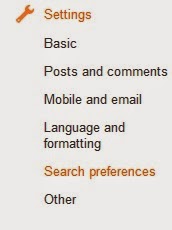
1:Go to  Blogger →Settings → Search Preferences

2: In search Preferences enable description and write description of your blog. It must be of 150 words.

3: Hit save and you have done.


Conclusion

By writing meta description of Posts it will appear in search results which will navigate user and it is necessary trick of search engine optimization. And by enabling description of your Blog it will appear after the title of your in this way user realize what your blog is providing.


What Should Be Meta Description of Posts?

Meta description of post should tell about your post. It's length should maximum of 150 words. You can explain about your post in meta description.
For Example: If the title of your Post is "Add Meta Description In Blog" then description should be "Learn what about meta description a complete guide."


What Should Be Meta Description Of Your Blog?

Blogger.com provides limit of 150 words for meta description which is best. So you should write main topics of your Blog. For example if Your Blog is about Blogging, SEO and Computer Technology. Your Meta Description should be "Learn about Blogging and SEO and Computer Technology"

Monday, 5 January 2015

Different About Author Widget For Blogger

According to the trend of Blogging and to introduce the author of posts from readers bloggers are using "About Author"gadget. This widget contains some information about author and a read more link which redirects on some other page having a complete information about author. A Blogger must use about author gadget in his blog to meet the standard of blogging. It's other benefit is that you are highlighted in the sight of other bloggers. Hence if your articles are good they will read the articles by seeing your name.


What Will You Get In This Article?

In this article I will get
  • Tutorial about "How to Place this Gadget In Blogger"
  • Gadgets of About Author having different styles
  • Learning of Customization of this widget
  • Suggestion about "Where to Place this widget"


How to Place Gadget In Blogger

To place the widget in your Blog follow these steps:
1:Go to  Blogger Layout  "Add a gadget" click on HTML/JavaScript Add.


 Now place one of the following code of the style of your choice and save.


Different Style of About Author gadget


1: Simple About Author Widget with avatar and Italic writing

Widget Code

    <!doctype html>


    <style>
    p.one {
        border-style: solid;
        border-width: 5px;
    border-color: Black;}

    </style>


    <p class="one"><span style="font-style:italic;">ADD YOUR BIO HERE <b><a href="http://graspinfo.blogspot.com/p/about-author.html"><span style="color: #38761d;">Read More. .</span></a></b></span><img src="https://blogger.googleusercontent.com/img/b/R29vZ2xl/AVvXsEiAbBURWgoJNwtpZWIHbEp8GWOWE84NnxZgVi_-0O9MP3RSnmovvk4t4l1uI5_GGOs4cY0cnxpQiU9JkdqOSvUtwCHAivktz5KoT7-e4ihy3b1XOwEwubM1ZRKYLTV-KhevbPUUPuSp7vqw/s1600/photo.jpg" alt="Author" style="width:100px;height:125px;" />

    </!doctype>


2: About Author Widgets with Margin and styled avatars.

 Style 1: Avatar with cutting edges


Widget code:


<style>
p {
    border: 1px green;
    outline: green dotted;
}
</style>


<p><span style="font-style:italic;"><img src="https://blogger.googleusercontent.com/img/b/R29vZ2xl/AVvXsEiAbBURWgoJNwtpZWIHbEp8GWOWE84NnxZgVi_-0O9MP3RSnmovvk4t4l1uI5_GGOs4cY0cnxpQiU9JkdqOSvUtwCHAivktz5KoT7-e4ihy3b1XOwEwubM1ZRKYLTV-KhevbPUUPuSp7vqw/s1600/photo.jpg" alt="Author" style="width:100px;height:125px; moz-border-radius: 35px;border-radius: 35px" />YOUR BIO. <a href="http://graspinfo.blogspot.com/p/count-word.html">Read More. . .</a></span>
</p>

 Style 2: Avatar with folded side


Widget code:

    <!doctype html>


    <style>
    p.one {
        border-style: solid;
        border-width: 5px;
    border-color: Black;}

    </style>


    <p class="one"><span style="font-style:italic;">ADD YOUR BIO HERE <b><a href="http://graspinfo.blogspot.com/p/about-author.html"><span style="color: #38761d;">Read More. .</span></a></b></span><img src="https://blogger.googleusercontent.com/img/b/R29vZ2xl/AVvXsEiAbBURWgoJNwtpZWIHbEp8GWOWE84NnxZgVi_-0O9MP3RSnmovvk4t4l1uI5_GGOs4cY0cnxpQiU9JkdqOSvUtwCHAivktz5KoT7-e4ihy3b1XOwEwubM1ZRKYLTV-KhevbPUUPuSp7vqw/s1600/photo.jpg" alt="Author" style="width:100px;height:125px;
-moz-border-radius-bottomright: 50px;
border-bottom-right-radius: 50px;
" />

    </!doctype>


 Style 3: Leaf styled Avatar

Widget code:

 <style>
p {
    border: 1px green;
    outline: green dotted;
}
</style>


<p><span style="font-style:italic;"><img src="https://blogger.googleusercontent.com/img/b/R29vZ2xl/AVvXsEiAbBURWgoJNwtpZWIHbEp8GWOWE84NnxZgVi_-0O9MP3RSnmovvk4t4l1uI5_GGOs4cY0cnxpQiU9JkdqOSvUtwCHAivktz5KoT7-e4ihy3b1XOwEwubM1ZRKYLTV-KhevbPUUPuSp7vqw/s1600/photo.jpg" alt="Author" style="width:100px;height:125px; -moz-border-radius: 1em 4em 1em 4em;
border-radius: 1em 4em 1em 4em;" />YOUR BIO. <a href="http://graspinfo.blogspot.com/p/count-word.html">Read More. . .</a></span>
</p>


 3:About Author Widget with Radius Top-Right-Radius Line and Round Avatar


Widget Code:

 <style>
div {
    border: 2px solid;
    padding: 10px;
    background: #dddddd;
    border-top-right-radius: 2em;
}
</style>
</head>
<body>

<div><p><span style="font-style:italic;"><img src="https://blogger.googleusercontent.com/img/b/R29vZ2xl/AVvXsEiAbBURWgoJNwtpZWIHbEp8GWOWE84NnxZgVi_-0O9MP3RSnmovvk4t4l1uI5_GGOs4cY0cnxpQiU9JkdqOSvUtwCHAivktz5KoT7-e4ihy3b1XOwEwubM1ZRKYLTV-KhevbPUUPuSp7vqw/s1600/photo.jpg" alt="Author" style="width:100px;height:125px; -moz-border-radius: 35px;
border-radius: 35px;" />YOUR BIO. <a href="http://graspinfo.blogspot.com/p/count-word.html">Read More. . .</a></span>
</p>.</div>

</body>

Amendment

In all widgets Replace the following
Red Color "YOUR BIO" with the words you want to write in widget.
Pink Color image link with the link of your Image.
Blue Color link with the link of your page which contain complete information about the author.


Place It on your Blog

After amendment place the code in Html/Java Script as told in First step of this article.

Customization in All widgets

You can customize all of gadgets as a choice of your own. Let's observe all widget codes. All are almost same. We just customize a bit and made another widget style. For example:- we add "-moz-border-radius-bottomright: 50px;
border-bottom-right-radius: 50px;
" this code to make border of image radius from right down bottom. If we change pixels it will adopt another style. Similarly you can customize outline color, can convert line into dotted line, can adjust width of image etc.


Where You Should Place About Author Widget?

If Your Blog has a footer with 3 or 4 widget places then you should place this gadget in extreme right or extreme left portion of footer. If your Blog's footer does not contains 3,4 or footer and has 1 side bar then place it in the middle of right side bar. It will give professional look.


Like Us on Facebook if this article is useful: facebook.com/graspinfo

Friday, 2 January 2015

Get Unlimited Traffic Using HitLeap

Unique Traffic is an ultimate goal of every Blogger. As everything depends on traffic like Alexa traffic Rank, CPM value of Ads for earning purpose, Page rank etc. In short traffic is the main goal of blogging. We do a lot of work for generating traffic like Socialize our posts to Facebook, Google+, Twitter, Pinterest etc. In this post I will tell you "How to Get Traffic just by running software". Actually this site or software involves the process in which once we start the software and minimize it, then it automatically visits various sites in exchange of which our website also admits in this list and people visits our website.


How To Get Traffic From HitLeap?

I will show you the process from which you can set up your HitLeap account and can exchange a lot of traffic. Following are the steps you have to follow.

Steps


1: Click on the following Banner of HitLeap
Free Website Traffic


2:Click on Sign Up button.


3: Fill the information required check "I agree to the terms and services" box  and sign up.


4:HitLeap will send confirmation link to email address you have given. See your mails, open mail from HitLeap and click on confirmation link.


5: Now Sign in to your HitLeap account. Click on "Submit your website"


6: Click on "Add New Website" at down and enter URL of your site and click on "Submit for Review"


7: HitLeap will take a moment and review your site. Now click on step to i.e Earn 100 minutes and Download software of HitLeap.


8: After installation of software Run software → Click on My Websites → Click Add New Website → Enter URL of your site.


9: Now Click "Traffic Exchange" after that click start and minimize the software. It will start visiting the other websites and other will visit your website. You have done!


What's Good?

HitLeap is source of generating traffic in many ways:
  • It does not reduce Alexa Rank
  • By credit you can generate traffic of your own choice i.e from any source.
  • Easy to Use

Feel free to ask any Question. Join us at Facebook: facebook.com/graspinfo

Sunday, 28 December 2014

Save Android Battery using Battery Saving Apps

As android contains heavy machinery in it, so it needs a large amount of charges to consume. That's why consumption of battery in smart phone is repaid. Excluding the heavy machinery the number of Apps processing at same time is also the main reason of this. But you can minimize this problem using some battery saving apps.


What Are Battery Saving Apps?

Battery Saving apps are those applications which are design to increase your battery life. They manage your smart phone in such a way that it consumes less amount of battery. For example it adjusts brightness and close other programs which are not useful and consumes battery of your android.


Battery Saving Apps for Android

Following are the Apps with their features for battery saving of Android.


Juice Defender


Juice Defender is one of the most famous app for battery saving in androids. It has a lot of features and is fully customizable. It increases battery of your smart phone to hours. It automatically starts after installation and works intelligently. It has following main features:
  • Powerful
  • Smart
  • Easy To Use

https://play.google.com/store/apps/details?id=com.latedroid.juicedefender&hl=en


Battery Doctor


Battery Doctor is another Battery Saving App and is suitable alternative of Juice defender. It regularly cleans extra and unused apps running on background of your screen and turns off packet data, WiFi etc. if not in used. It has following main features.
  • Make low frequency of consumption on home screen
  • 19 different languages
  • Saves a lot of battery when cell is not in use

https://play.google.com/store/apps/details?id=com.ijinshan.kbatterydoctor_en&hl=en


Go Battery Saver


Go battery Saver is considered as one of the best battery saving apps. It has given highest ranking among all of battery saver apps. It is friendly for use. It has nearly same features of above apps but is still better then those. It has following main features.
  • Custom saving mode
  • Beautiful layout
  • Easy and friendly to use

https://play.google.com/store/apps/details?id=com.gau.go.launcherex.gowidget.gopowermaster&hl=en

DU Battery Saver


DU battery saver app has given the rank of 2 after Go battery saver. It works great on Galaxy notes. About 89% users has given positive comments while 11% shows some issues which is neglect able to some extent. It is good alternative of Go battery and battery Doctor. It has following main features.
  • Increases up to half time of batter
  • One touch Control
  • Extend Battery life
https://play.google.com/store/apps/details?id=com.dianxinos.dxbs&hl=en


What's Good In Using all these Apps?

As all these apps increases timing of your smart phone's battery hence increase life of your battery. If you are android user you must use it.

Friday, 26 December 2014

Unblock Youtube and Other Blocked Sites Using ZenMate Plugin

Blocking of various websites specially YouTube has become a major problem for common user as well as blogger or other professionals earning from E-commerce. YouTube is useful source for advertisement and earning purpose and no doubt is the biggest site for videos.  But due to some reasons it is blocked in different regions. To unblock various sites including Youtube  users use different proxy which involves Hotspot Sheild, SpotFlux and others. But they have some major problems.


Problems Of Proxy

When you apply proxy using softwares like Hotsop Sheild you face following problems usually.

  • IT slow down your browsing speed
  • Make your computer to work slow.
  • Made their own device in computer which effects your computer
  • Show irritating Ads
But ZenMate Plugin can solve these problems.


What is ZenMate?

ZenMate is a plugin which is installed in your browser. It needs no setup or device to made in your system. It simply appears on your browser and you can use it when ever you want.


How It Works?

It works also works as a proxy but as compared to all softwares it is best. You can unblock Youtube and other websites using ZenMate plugin by simply enabling it. After installing, it appears on upper right bar of your browser if you are talking about Firefox. You have to turn on it by clicking it and it will change your IP Address so that you can unblock websites.


How to Install ZenMate Plugin?

To Install ZenMate Plugin Follow these simple steps.
(This tutorial is for Firefox you can add this plugin on other browsers from their own adds on sites)

Steps To Install ZenMate Plugin

1: Open this link https://addons.mozilla.org/fr/firefox/addon/zenmate-security-privacy-vpn/?src=hp-dl-upandcoming


2: Click on "Add to Firefox"


3:Click on "Install now" in the new window of software installation.


4: After installation click on ZenMate Icon and switch it to on.

You have done. Unblock websites and enjoy!

Follow us on Facebook: Graspinfo

Popular Posts


© 2013 Grasp Info. All rights resevered. Designed by Graspinfo

Back To Top